SellProof Docs
Getting started with SellProof
SellProof checks whether a product really sells before you spend money on it. It searches Meta's Ad Library in the EU and UK, finds the shops actually selling your product and tells you PASS, UNSURE or FAIL, with the reasons. This page gets you from download to your first check.
How SellProof works in one minute
Shops don't keep paying for ads that lose money. So if a shop has been advertising your product for weeks, with many ads, it's very likely selling. That information is public in Meta's Ad Library, but checking it by hand means searching country by country, in each language, and throwing out unrelated ads and big retailers.
SellProof does that work for you:
- You describe a product and the words customers would search for, in each country's language.
- SellProof searches Meta's Ad Library in every country you picked, using Meta's official API through your own free developer app.
- It keeps only real competitors: shops whose ads are really about your product.
- You get a verdict with the reasons, the competitors, their shop prices and their best ads.
Everything runs on your computer. Your products, results and reports are stored locally; SellProof has no server and sends nothing about you anywhere.
What you need
- A computer: Windows 10 or 11 (64-bit), a Mac with Apple Silicon (M1 or newer, macOS 11+), or 64-bit Linux.
- A Facebook account to create a free Meta developer app. You don't need to run any ads, and Meta charges nothing.
- Internet for searches. Products and reports also work offline.
Meta's API only returns product ads delivered in the EU and the UK, so SellProof is built for selling in Europe. Why only EU and UK ads
1. Install SellProof
After your purchase, Lemon Squeezy emails you a receipt with the download links and your licence key. You can also download every version from your Lemon Squeezy orders page.
Windows
- Download the installer (
.exe) and open it. It installs for your user account; no admin rights are needed. - SellProof is new, so Windows may show “Windows protected your PC”. Click More info, then Run anyway. You only do this once.
Mac
- Open the disk image (
.dmg) and drag SellProof into Applications. - If macOS says SellProof can't be opened, open System Settings → Privacy & Security, scroll down and click Open Anyway next to SellProof. You only do this once.
Linux
- Download the
.AppImage. Right-click it → Properties → Allow executing as program (or runchmod +x SellProof*.AppImage). - Double-click it. SellProof opens in your default browser. It needs glibc 2.35 or newer (Ubuntu 22.04, Debian 12, Fedora 36 or later).
2. Activate your licence
On the first start, SellProof asks for your licence key. Paste it from the receipt email and press Activate. One key works on up to 3 of your computers.
- SellProof checks the key once online when activating, and quietly at each start. Without internet it keeps working.
- Moving to a new computer? In ⚙️ Settings → License, press Deactivate this computer on the old one first, to free its place.
3. Connect to Meta (once)
SellProof searches the Ad Library with your own free Meta developer app. A built-in guide with short videos walks you through it in four steps; it takes about 15 minutes plus Meta's identity check. Follow Connect to Meta for the details.
You can try every feature in the meantime: before Meta is connected, a product check runs on sample data. Or click through the free browser demo.
4. Run your first check
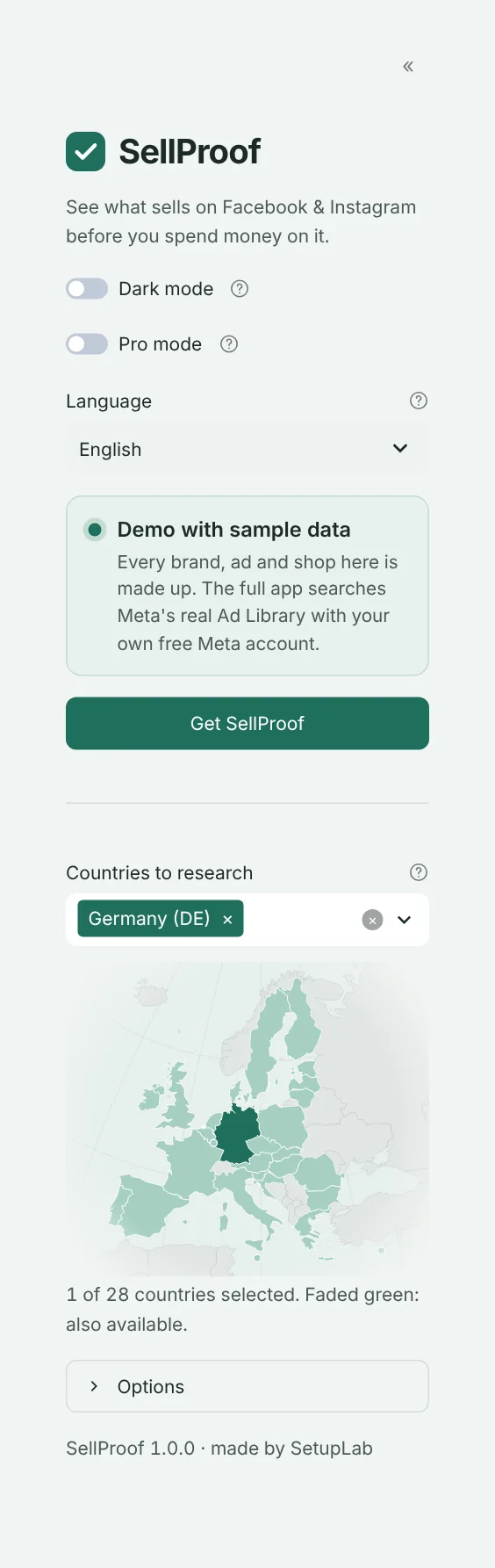
- In the left panel, pick your countries under Countries to research. The map shows what you picked.
- Open ✅ Check a product, pick one of the example products or start a new one, and fill in what it is.
- Add the search words for each country, or press Not sure which words to use? Let AI suggest them.
- Press 🔍 Check this product. After 1–3 minutes you get the verdict.
The next pages explain each part in detail. If you only read one, read Check a product.
Guided mode and Pro mode
SellProof starts in Guided mode: every step has a short explanation, and every field has a ? with help. Once you know your way around, switch on Pro mode in the left panel for a compact view with shorter names. You can switch back any time. The app is available in English and German (Language in the left panel), with a light and a dark look.
Something unclear or missing? Write to support@setuplabco.com or use the contact form: we answer every message and improve these pages from your questions.